


An IP address ( Internet Protocol address ) is a unique series of numbers used by machines (most often computers) in mutual traffic via the Internet. In other words, the IP address is a medium of communication that helps devices and computers direct the user to the right page.
How do IP addresses work?
An IP address consists of 12 unique digits, and its purpose can be compared to telephone numbers. When you make a call, your phone number identifies who you are and assures the person answering the phone that it is you. IP addresses do exactly the same thing when you’re online – that’s why every device connected to the Internet has its own IP address. An IP address identifies a device on the Internet; without it, there is no way to “get in touch” with another device or computer. It allows devices to communicate with end destinations such as websites and streaming services, and lets websites know who they are. connects.
The role of DNS
DNS ( Domain Name System ) is a system that connects domain names with IP addresses that computers can use. IP addresses are just as important as domain names; for example, you can type 66.220.159.230 into your web browser, and after clicking enter you will visit Facebook. Without DNS, we would have to write down and remember IP addresses instead of domain names of sites.
DNS has freed us from the headache of remembering IP addresses. DNS servers sit between your browser and the site you want to visit. When you enter a URL in the search field, the browser looks up that domain name on a DNS server, retrieves the corresponding (its) IP address, and sends you to the location you want.
Types of IP addresses
There are two types of internet protocols – IPv4 and IPv6.
IPv4 vs. IPv6 – Basic Differences
IPv4 (Internet Protocol Version 4) The current standard for IP addresses on the Internet was defined back in 1981. IPv4 is a 32-bit number system divided into four parts (octets) separated by periods. The value of each octet ranges from 0 to 255. Therefore, there are approximately 4.3 billion unique IPv4 addresses.
IPv4 address: 169.89.134.249
As the Internet gained in popularity, over time, there were fewer and fewer free IP addresses, which led to the development of IPv6 addresses, which aim to replace IPv4 addresses in the near future. IPv6 addresses are 128-bit. They are written in eight sets of 16-bit hexadecimal digits separated by colons, meaning there are about 340 non-decillion unique IPv6 addresses. Seems confusing? We agree. In translation, it’s the number 340 followed by as many as 36 zeroes – which means that (in theory) we can never run out of addresses, but it’s best to see an example of what IPv6 addresses look like.
IPv6 address (1): 2001:db8:3333:4444:5555:6666:7777:8888
IPv6 address (2): 2001:db8:3333:4444:CCCC:DDDD:EEEE:FFFF
Private IP address vs. Public IP address
A private IP address, also called a local IP address, is a free IP address used for communication within a local network such as identifying your devices within a home network or within a business office. A local IP address is assigned to your computer by your router, which is the hardware that connects your local network to the Internet. In most cases, the router (or cable modem) automatically assigns that internal IP address. These IP addresses only work in a local area network (LAN), but not on the Internet.
On the other hand, a public IP address is an IP address that is used for communication outside the local network and is connected to the Internet. This type of IP address is not free because it is assigned and controlled by Internet service providers. When you surf online, the website you visit needs to know who you are (for traffic tracking reasons). Your ISP (Internet Service Provider) uses your external (public) IP address to introduce you to the website and establish a connection.
Dynamic IP address vs. Static IP address
Public IP addresses can be dynamic or static. As their name suggests, dynamic IP addresses change every time a new device is added to the network, the configuration changes, or the device is rebooted. So, there is every chance your home IP address is never the same, but changes dynamically. These IP addresses are usually used for security reasons, as regular changes make it difficult for hackers to access and potentially misuse them.
In contrast, static IP addresses are considered fixed IP addresses, so they remain the same even with changes. Most end (regular) users do not need to have static IP addresses. These addresses are mainly needed for devices that need constant access or connection to a private network. For example, a printer used in business premises must have a static IP address so that people in the office can easily connect to it.
Shared IP address vs. Dedicated IP address
If you want to have your own website, it is necessary to rent a hosting account. In this regard, remember that your website can have a Shared or Dedicated IP address. A shared IP address is an IP address that is shared by several domain names and is mostly associated with shared hosting, where several users share resources on the hosting company’s server.
On the other hand, a dedicated IP address means that the domain name is linked to an IP address that is not shared with others.
Assignment of IP addresses
Private IP addresses are assigned by the router to devices via the DHCP protocol. This protocol offers the ability to dynamically (automatically) assign IP addresses to devices on the network so that connected devices can communicate with each other through the router.
A public IP address is assigned by an Internet service provider. These IP addresses are mostly dynamic, but Internet service providers provide the option of renting a static IP address.
What is my IP address?
If you want to know the IP address of one of your devices, you can do it in several ways, depending on the device you use.
macOS
- Click on
System Preferencesand then onNetwork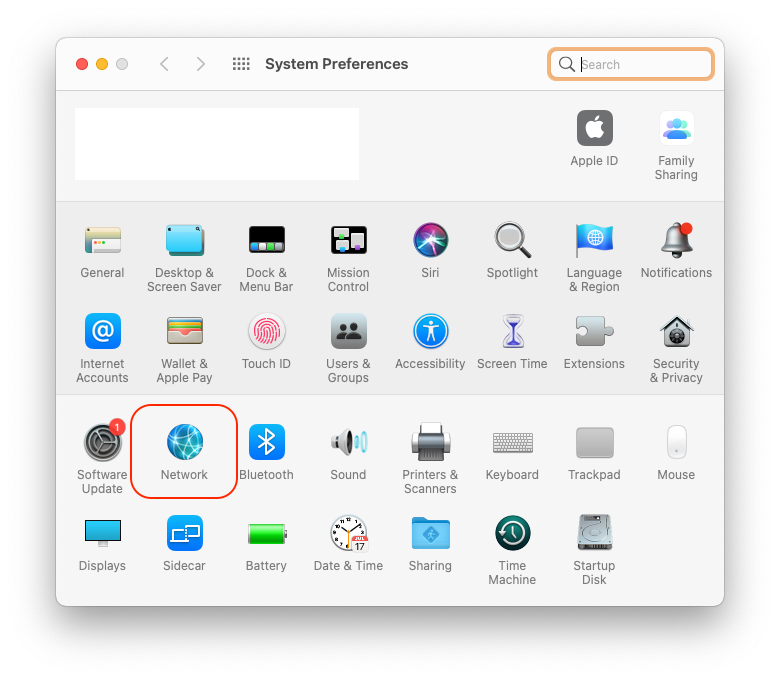
- The computer’s IP address will be above the network name

Windows 10
- On the taskbar on the right, click on
Wi-Fi Networkand then onProperties - Next to the
IPv4 addresswill be the IP address
Public IP address
If you want to find your public IP address, simply type What is my IP address into the Google search engine.


